> For the complete documentation index, see [llms.txt](https://docs.swiftproxy.net/llms.txt). Markdown versions of documentation pages are available by appending `.md` to page URLs; this page is available as [Markdown](https://docs.swiftproxy.net/zh-tw/dai-li/ji-cheng-dai-li/zhu-zhai-dai-li-ji-cheng/mulogin.md).
# Mulogin
## **什麼是 MuLogin?**
MuLogin 是一款反偵測指紋瀏覽器,主要提供獨立的指紋與環境隔離技術,幫助用戶在同一台電腦上同時登入並管理多個跨境電商、社交媒體與廣告行銷帳號。這項工具可節省時間、降低人力成本與帳號環境開支,從而提升團隊效率。
其主要功能包括:
* 支援多平台、多帳號管理
* 為每個瀏覽器實例提供獨立、唯一的指紋環境
* 多重指紋保護,可同時運行多個瀏覽器實例以防偵測
* 簡易的瀏覽器自動化操作
* 多用戶協作支援,提升團隊工作效率
* 可整合主流代理服務供應商
## **如何配置 MuLogin 和 Swiftproxy 住宅代理?**
### **Step 1: 獲取代理信息與下載**
1. 從[官方網站](https://www.mulogin.com/)下載並安裝 MuLogin
2. 前往 Swiftproxy 官網獲取您的代理IP
* [**API 獲取**](/zh-tw/dai-li/zhu-zhai-dai-li/huo-qu-dai-li/api-qu-de.md)
* [**賬密認證**](/zh-tw/dai-li/zhu-zhai-dai-li/huo-qu-dai-li/zhang-mi-ren-zheng.md)
### **Step 2: 在 MuLogin 中配置 Swiftproxy**
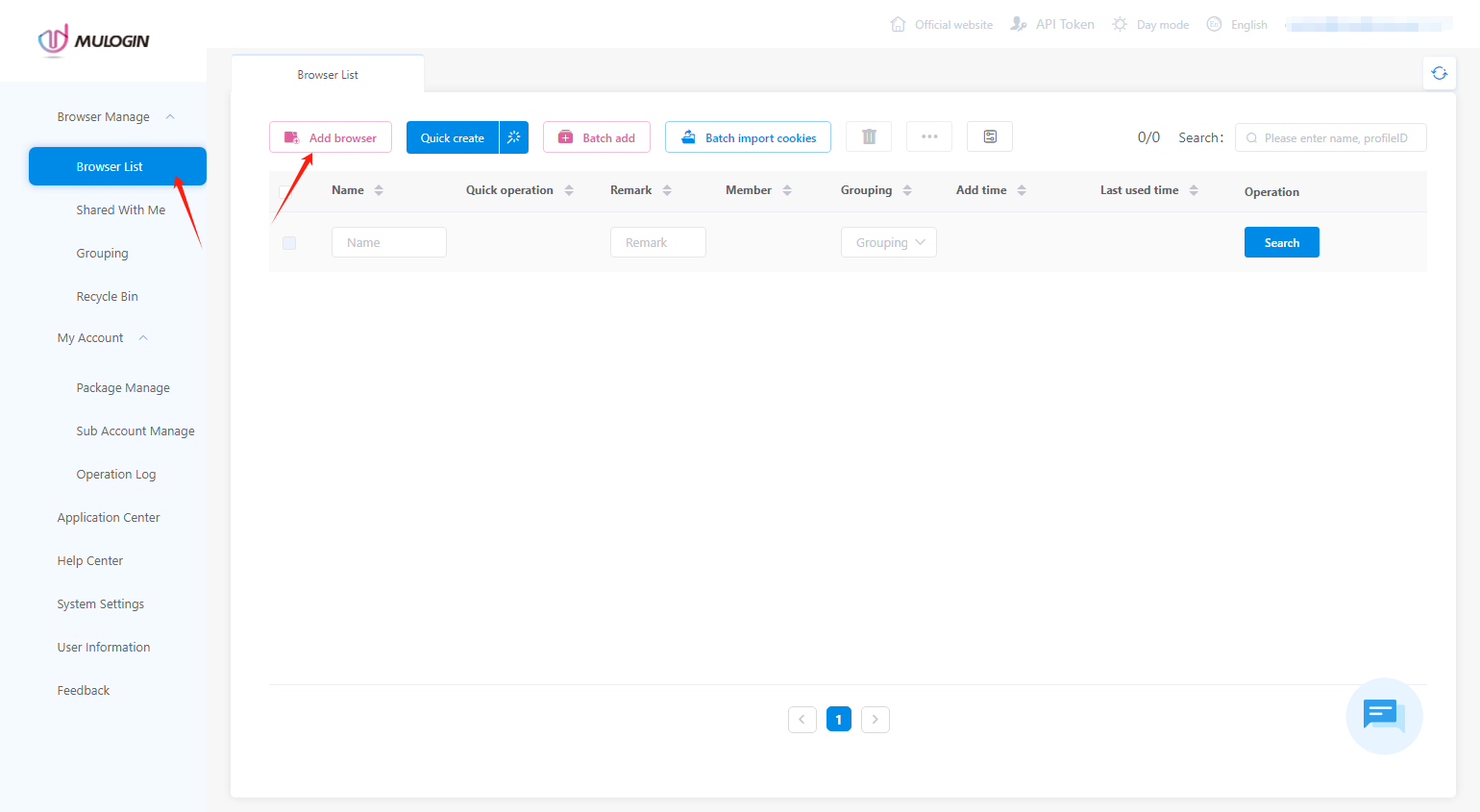
1. 登入 MuLogin 後,先點擊【Browser List】,然後點擊【Add Browser】
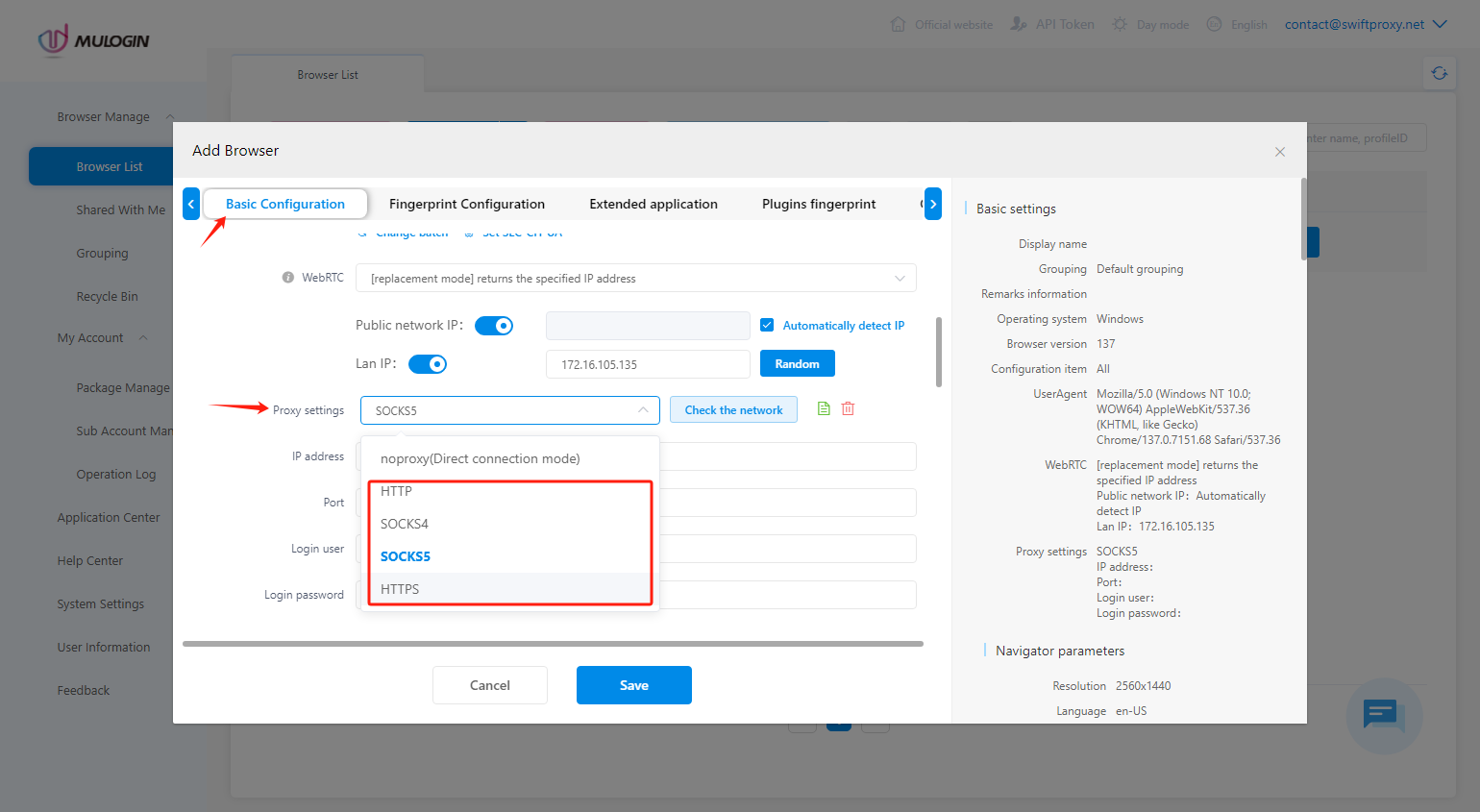
 2. 要配置您的代理,請選擇【Basic Configuration】,找到【Proxy Setting】,然後選擇 HTTPS 或 SOCKS5 協議
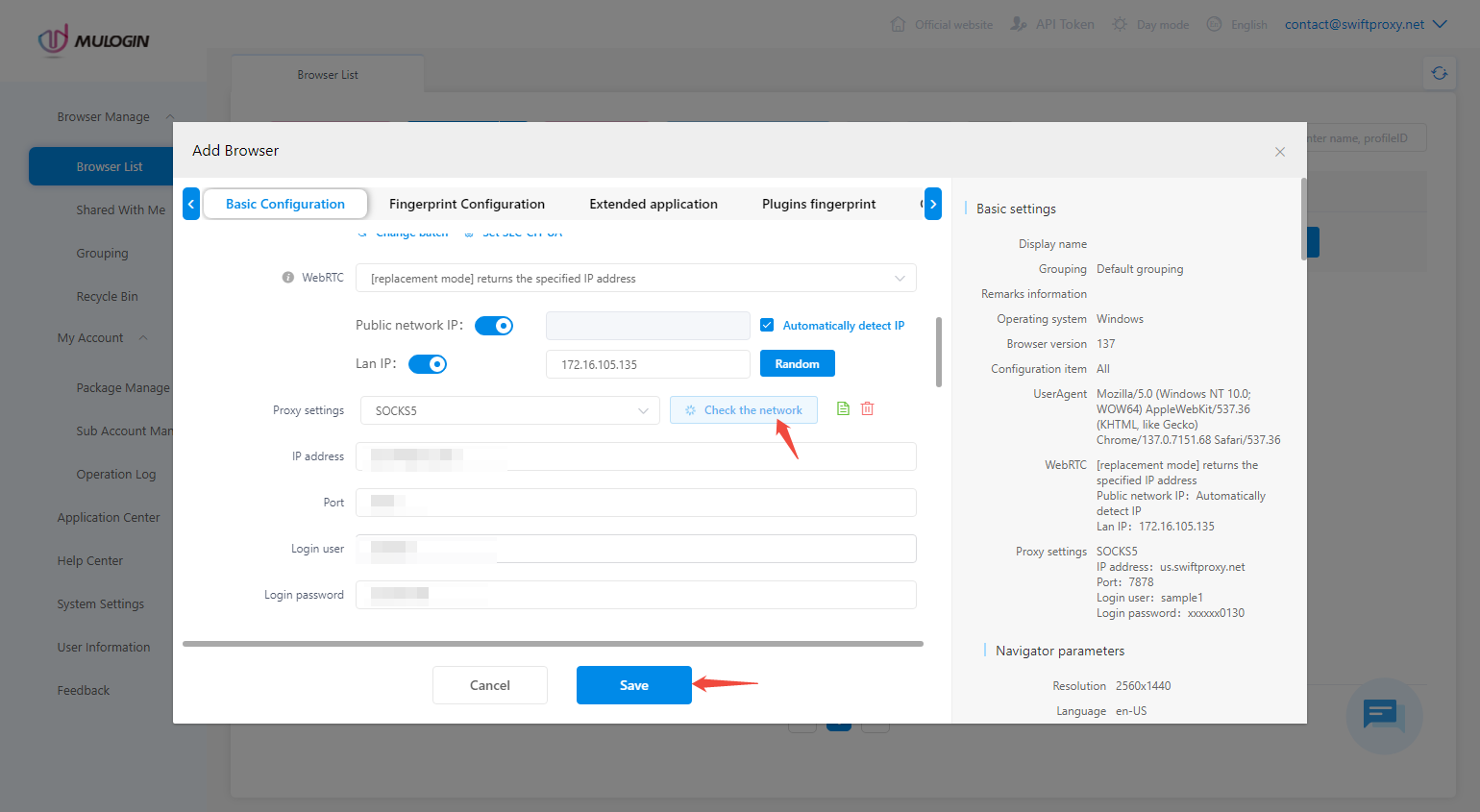
 3. 將您從 Swiftproxy 控制台複製的代理資訊貼入 MuLogin,如下圖所示,點擊【Check the network】檢查網路連線,然後點擊【Save】完成設定。請記得填寫顯示名稱
**注意**:所需的代理詳情可參考Step1
3. 將您從 Swiftproxy 控制台複製的代理資訊貼入 MuLogin,如下圖所示,點擊【Check the network】檢查網路連線,然後點擊【Save】完成設定。請記得填寫顯示名稱
**注意**:所需的代理詳情可參考Step1