> For the complete documentation index, see [llms.txt](https://docs.swiftproxy.net/llms.txt). Markdown versions of documentation pages are available by appending `.md` to page URLs; this page is available as [Markdown](https://docs.swiftproxy.net/proxies/integration-and-usage/static-residential-proxies-integration/undetectable.md).
# Undetectable
## What is Undetectable Browser?
Undetectable.io is an anti-detect browser that protects your online identity by altering your device's digital fingerprint, including OS, cookies, languages, fonts, User-Agent, and even mobile device data. Paired with a proxy, it allows the creation of unique browser profiles with individual settings and extensions, making them appear as real users. This advanced fingerprint-switching technology offers heightened security and anonymity, surpassing regular proxies or VPNs by preventing websites from detecting any connections between profiles. Perfect for multi-accounting, crypto wallets, and web scraping.
**Advantages of the Undetectable browser:**
* 99.99% of uptime during the year;
* Easy export and import of proxies, cookies, bookmarks;
* Automatic cookie farming for warming up profiles;
* Managers for bulk work with proxies and extensions;
* Automation of actions via API;
* Synchronizer for simultaneous management of multiple browser profiles;
* "Paste like a human" function, which imitates human behavior when pasting text.
## **How to configure Undetectable with Swiftproxy Residential Proxy?**
### **Step 1: Get Proxy Information and Download**
1. Download Undetectable from the [official website](https://undetectable.io/?r=kbTbu\&utm_source=swiftproxy\&utm_medium=affiliate).
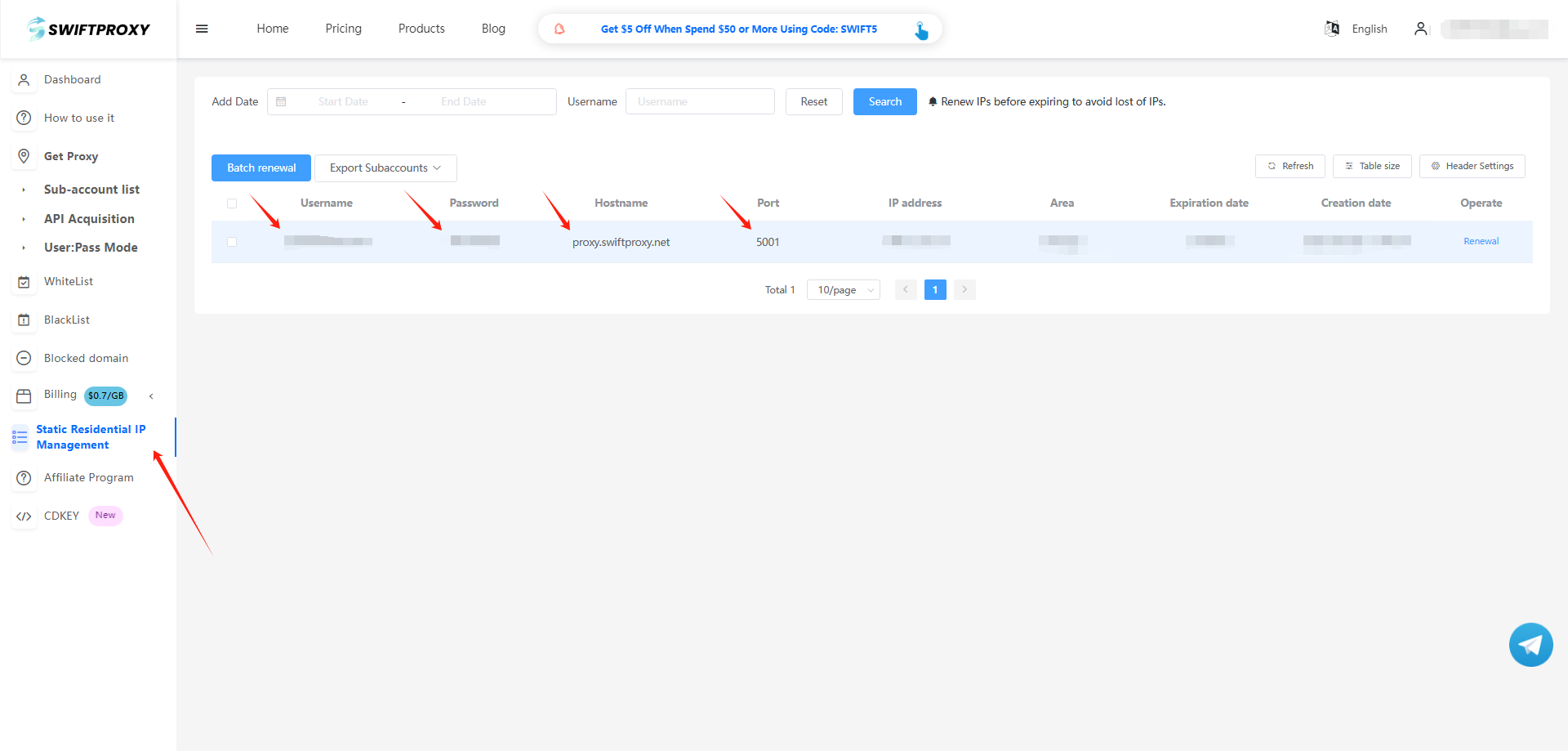
2. Visit the [Swiftproxy dashboard](https://www.swiftproxy.net/user/ucenter) and copy Username, Password, Hostname, and Port.
### **Step 2: Configure Swiftproxy in Undetectable**
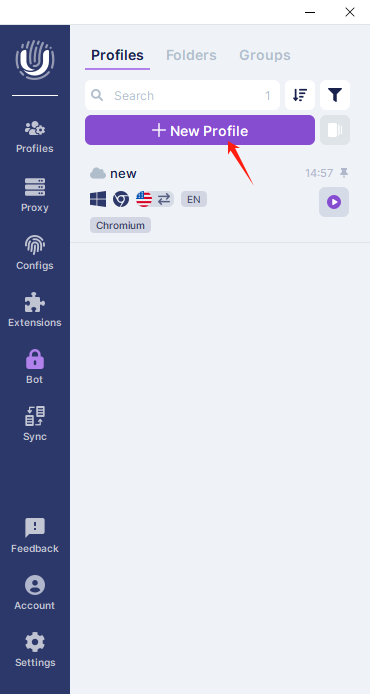
1. Once logged in, tap "Add Profile" on the sidebar:
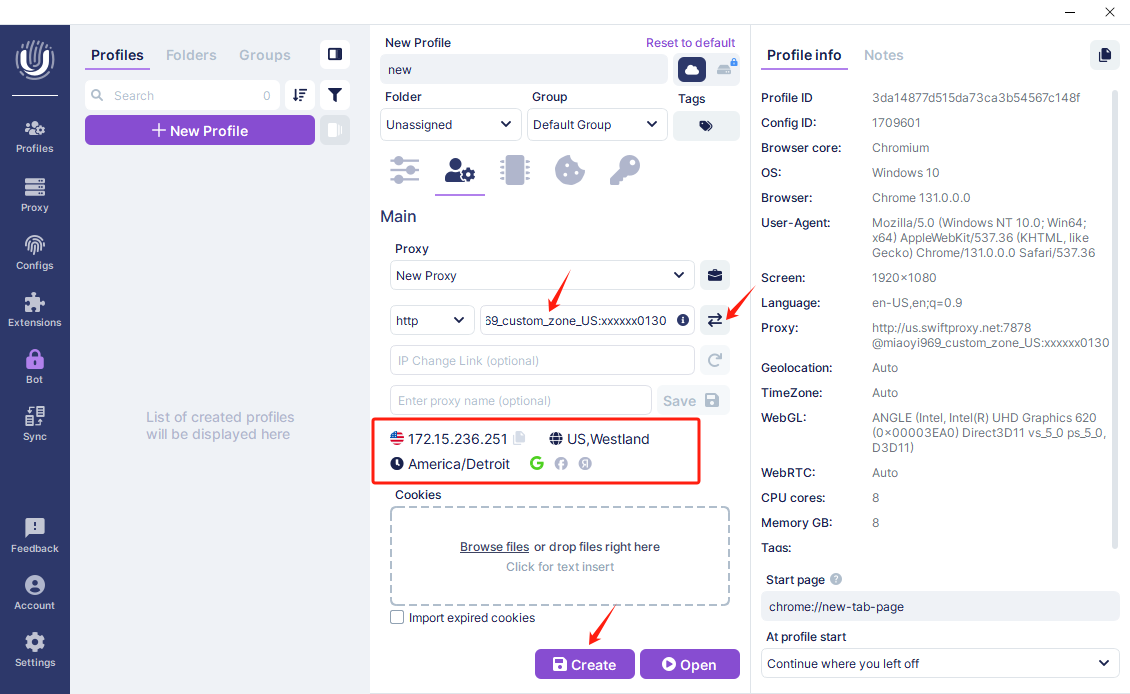
2. A window for profile configuration will pop up. Select the “Main” tab. In the proxy section, click the dropdown list and select “New Proxy", then select the appropriate proxy protocol. In this case, we will choose the "HTTP" protocol.
3. To configure your proxies, select HTTP as the proxy protocol to run with. In the adjacent field, Paste Username, Password, Hostname, and Port we copied from Swiftproxy dashboard. A special button will allow you to quickly check the functionality of the proxy. If the proxy is valid, click "Create" at the end.
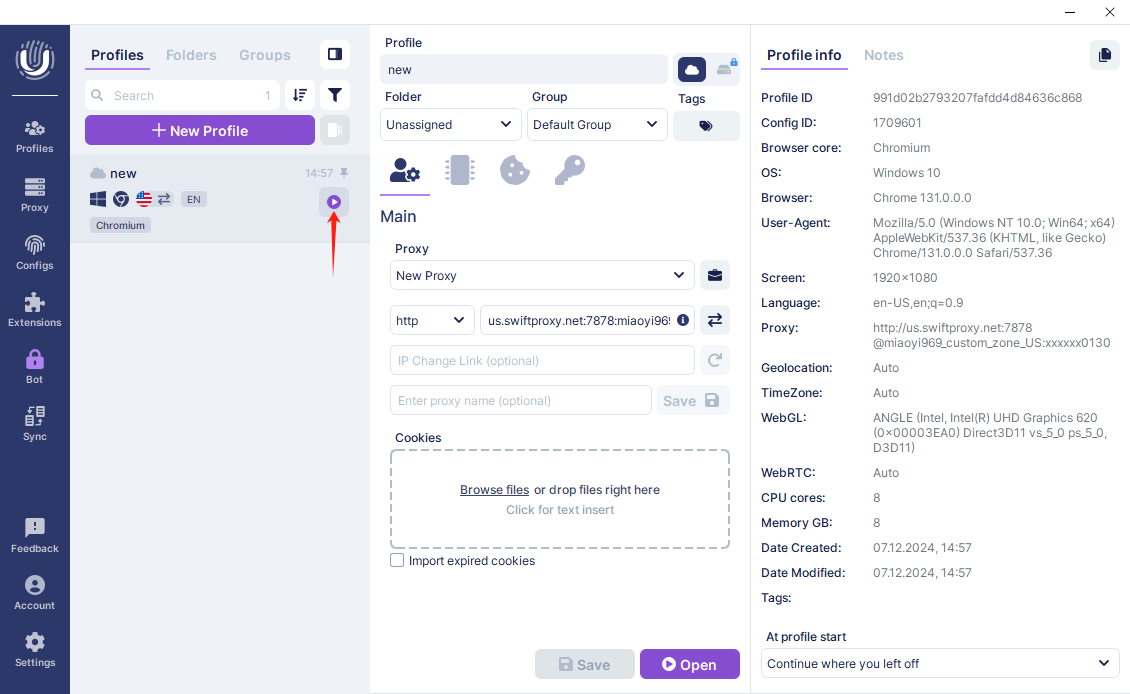
4. Tap "Start" to open the browser window:
 2. A window for profile configuration will pop up. Select the “Main” tab. In the proxy section, click the dropdown list and select “New Proxy", then select the appropriate proxy protocol. In this case, we will choose the "HTTP" protocol.
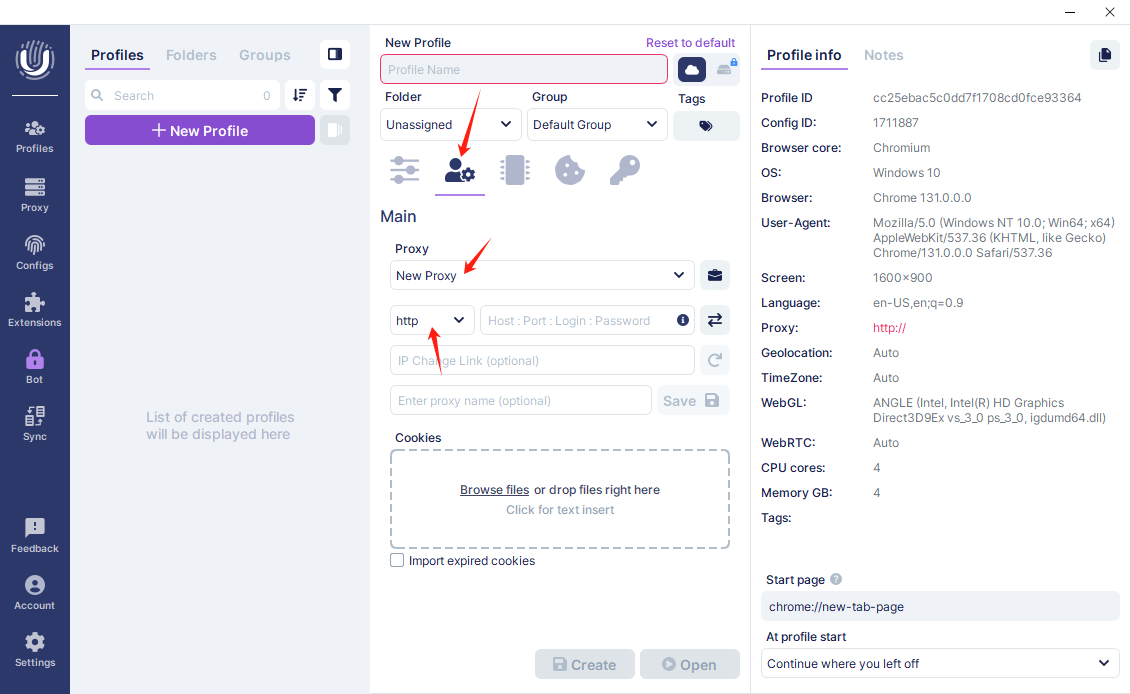 3. To configure your proxies, select HTTP as the proxy protocol to run with. In the adjacent field, Paste Username, Password, Hostname, and Port we copied from Swiftproxy dashboard. A special button will allow you to quickly check the functionality of the proxy. If the proxy is valid, click "Create" at the end.
 4. Tap "Start" to open the browser window: