> For the complete documentation index, see [llms.txt](https://docs.swiftproxy.net/llms.txt). Markdown versions of documentation pages are available by appending `.md` to page URLs; this page is available as [Markdown](https://docs.swiftproxy.net/proxies/integration-and-usage/static-residential-proxies-integration/mulogin.md).
# Mulogin
## **What is MuLogin?**
The MuLogin anti-detect fingerprint browser primarily offers unique fingerprints and environmental isolation for each account, facilitating users in logging into and managing multiple cross-border e-commerce, social media, and advertising marketing accounts on the same computer simultaneously. This tool saves time, reduces labor costs, and minimizes account environment expenses, thereby enhancing team efficiency. Key features include:
1. Multi-platform and multi-account management;
2. Unique and independent browser fingerprint environment for each instance;
3. Multiple fingerprint protection, allowing simultaneous operation of multiple browsers to prevent detection;
4. Simple browser automation;
5. Multi-user collaborative support for efficient teamwork;
6. Integration support with popular proxy providers.
## **How to configure Mulogin with Swiftproxy Static Residential Proxy?**
### **▶️ Video Tutorial**
{% embed url="" %}
### **Step 1: Get Proxy Information and Download**
1. Download Mulogin from the [official website](https://www.mulogin.com/).
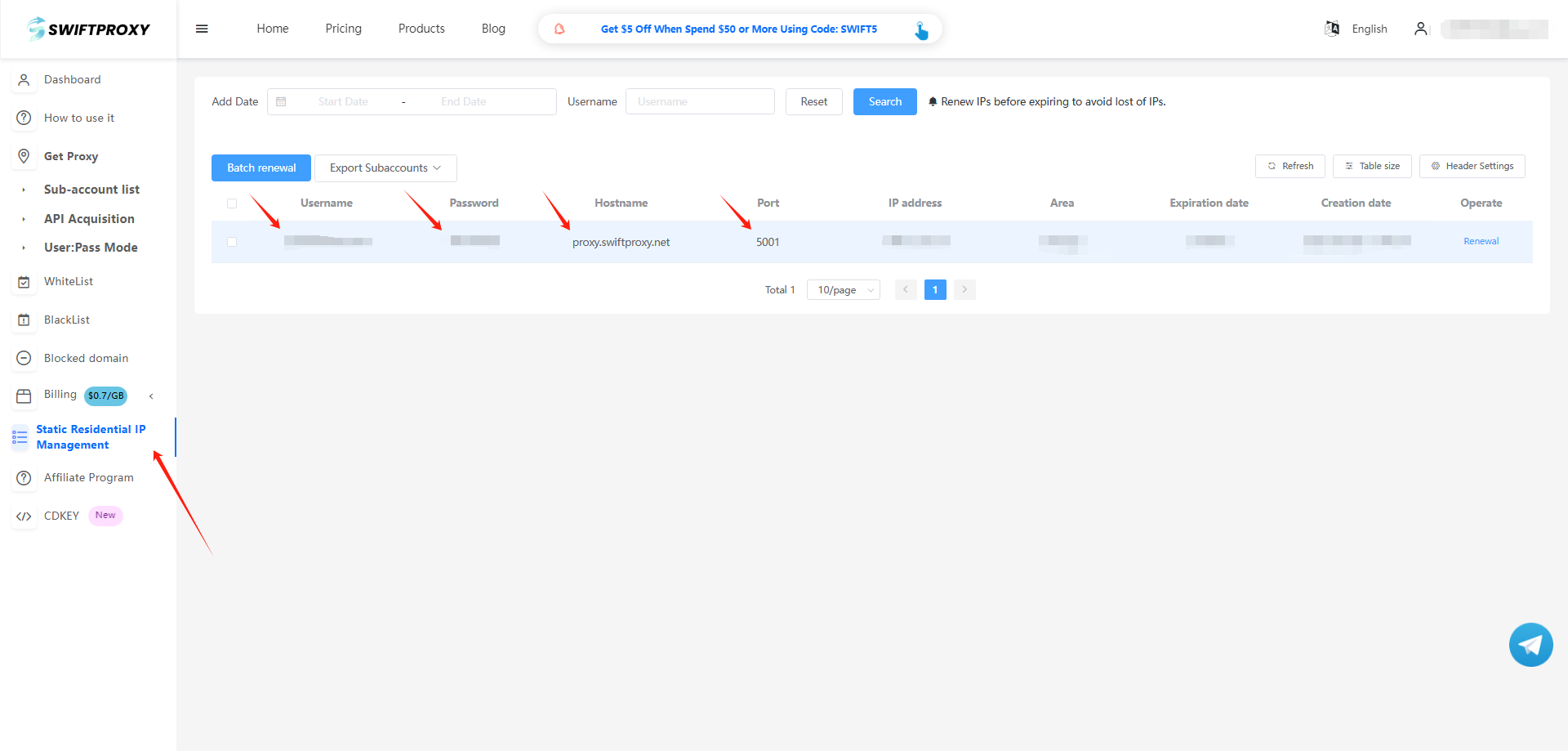
2. Visit the [Swiftproxy dashboard](https://www.swiftproxy.net/user/ucenter) and copy Username, Password, Hostname, and Port.
### **Step 2: Configure Swiftproxy in Mulogin Browser**
1. Log in to Mulogin, click "Browser List" first, and click "Add browser".
2. Choose "Basic Configuration" and find "Proxy Setting", choose HTTPS or SOCKS5.
3. To configure your proxies, paste the proxy information, including the username, password, hostname, and port that you copied from the Swiftproxy dashboard, and click "Save" to complete the configuration. Remember to write your display name.