> For the complete documentation index, see [llms.txt](https://docs.swiftproxy.net/llms.txt). Markdown versions of documentation pages are available by appending `.md` to page URLs; this page is available as [Markdown](https://docs.swiftproxy.net/proxies/integration-and-usage/static-residential-proxies-integration/masq-browser.md).
# MASQ Browser
## **Why choose MASQ Browser?**
The reasons for choosing MASQ Browser can be summarized as follows:
1. Privacy protection: MASQ Browser emphasizes user privacy protection and may provide stricter privacy settings and data encryption functions to ensure that users' browsing activities are not tracked or leaked.
2. Ad blocking: The browser may have built-in efficient ad blocking functions to reduce disruptive ads and trackers on web pages and enhance users' browsing experience.
3. Speed optimization: MASQ Browser may provide faster browsing speed by optimizing web page loading speed and reducing unnecessary resource consumption.
In summary, choosing MASQ Browser is mainly based on its advantages in privacy protection, ad blocking and speed optimization.
## **How to configure MASQ Browser with Swiftproxy Static Residential Proxy?**
### **Step 1: Get Proxy Information and Download**
1. Download MASQ Browser from the [official website](https://masqad.com/).
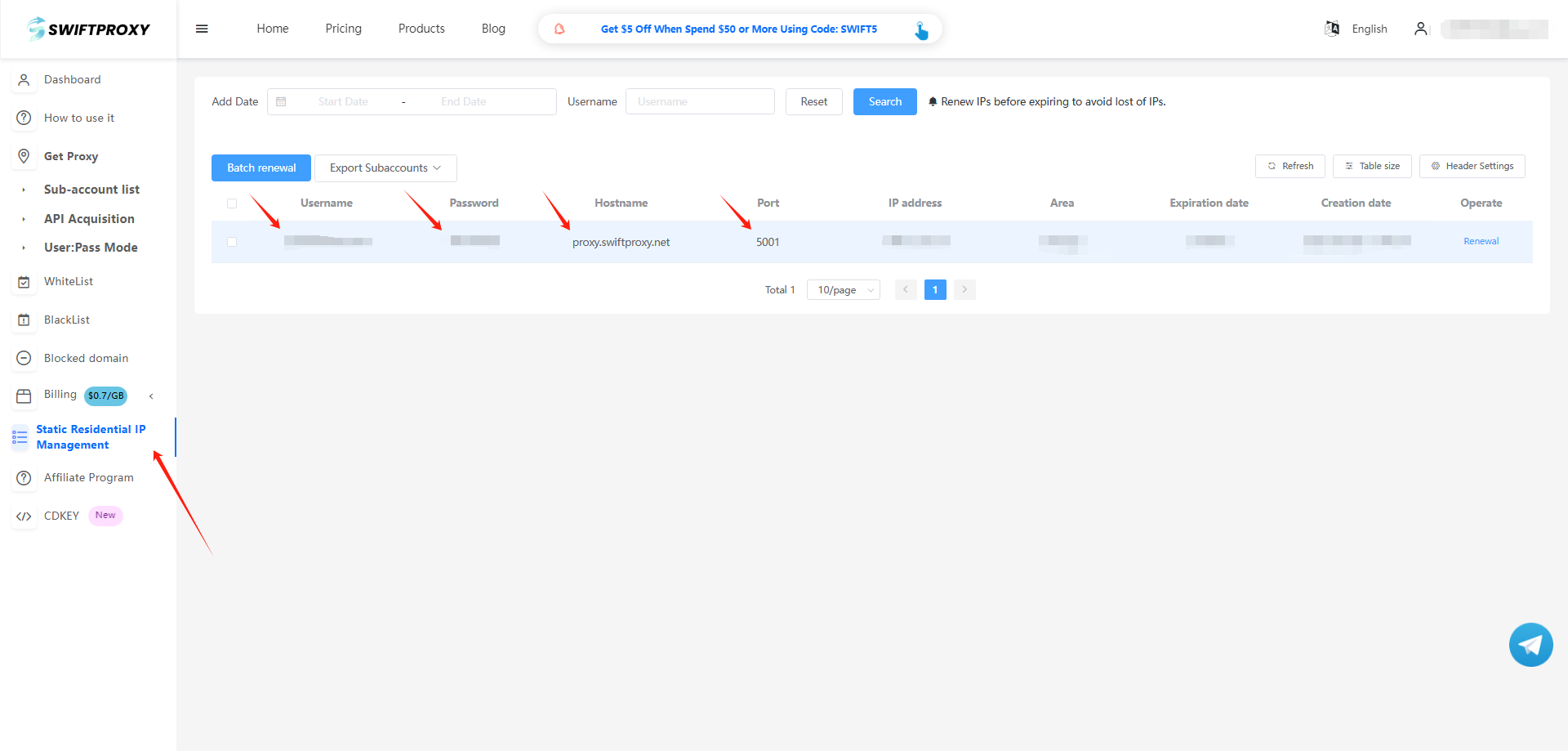
2. Visit the [Swiftproxy dashboard](https://www.swiftproxy.net/user/ucenter) and copy Username, Password, Hostname, and Port.
### **Step 2: Configure Swiftproxy in MASQ Browser**
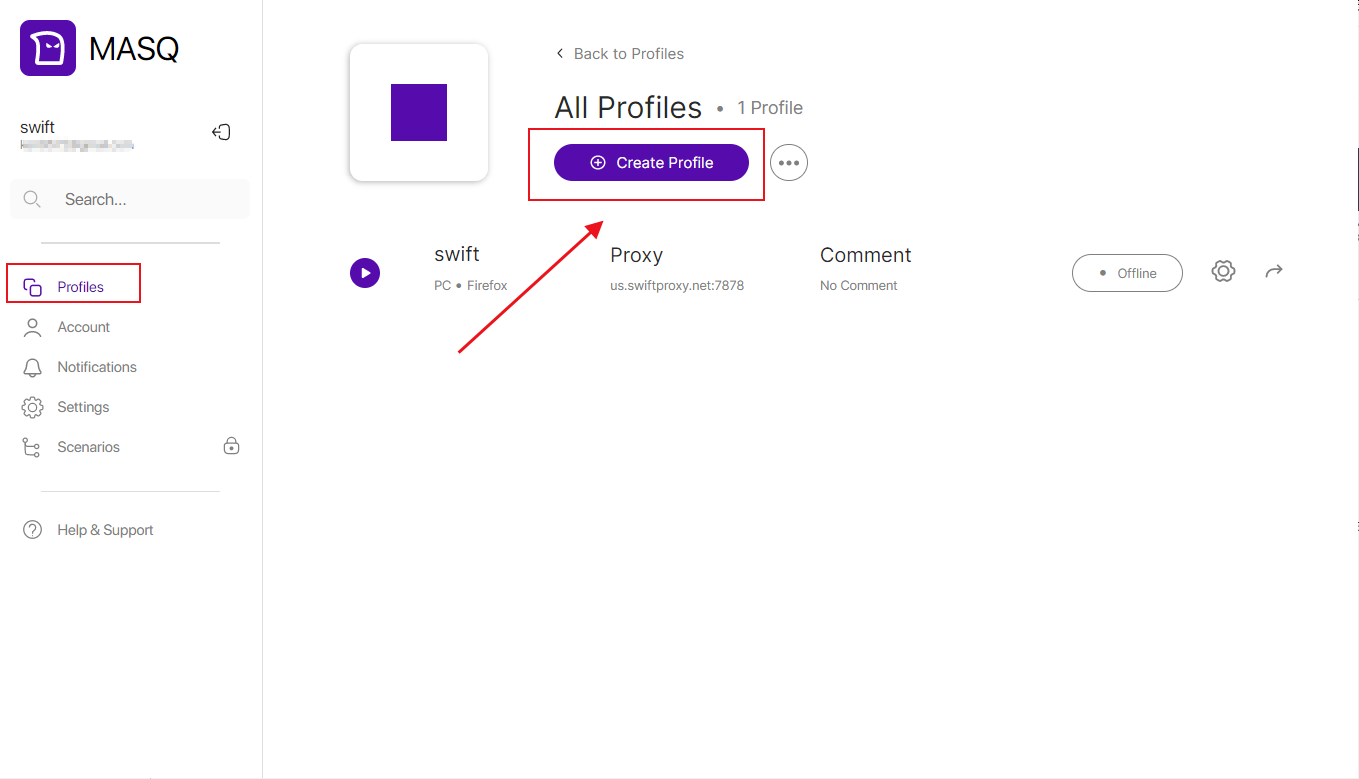
1. Open the browser, click the "Profile" option on the left, select a folder, and start creating files.
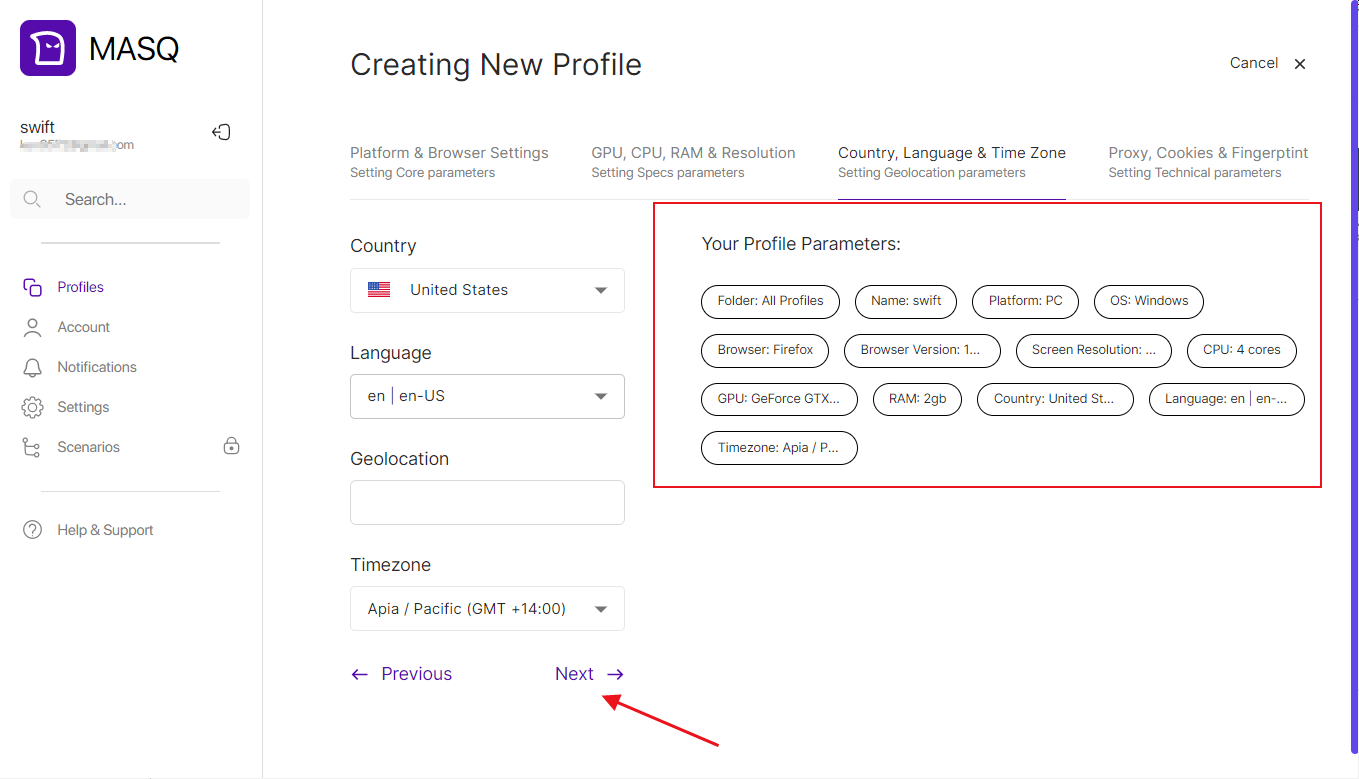
2. Set the browser name and various configuration options of the browser. You can set it according to your needs.
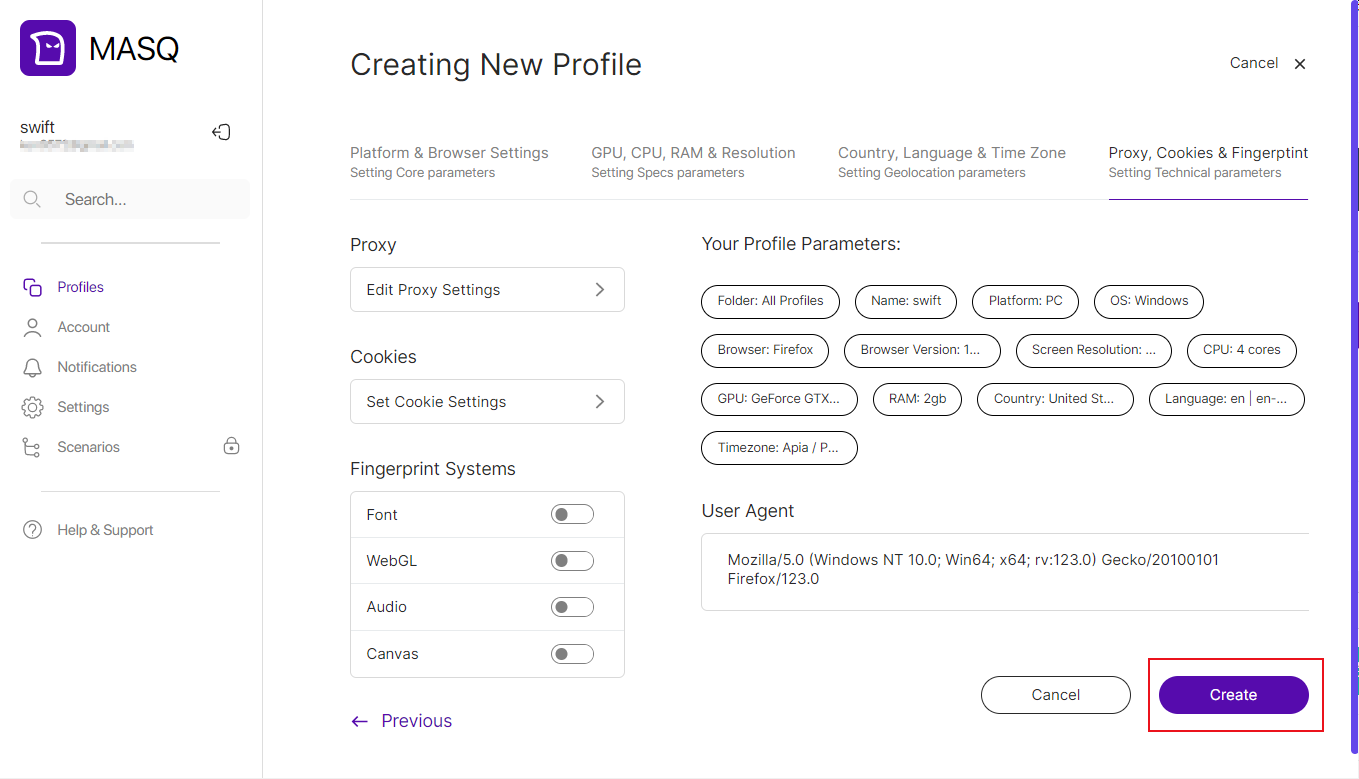
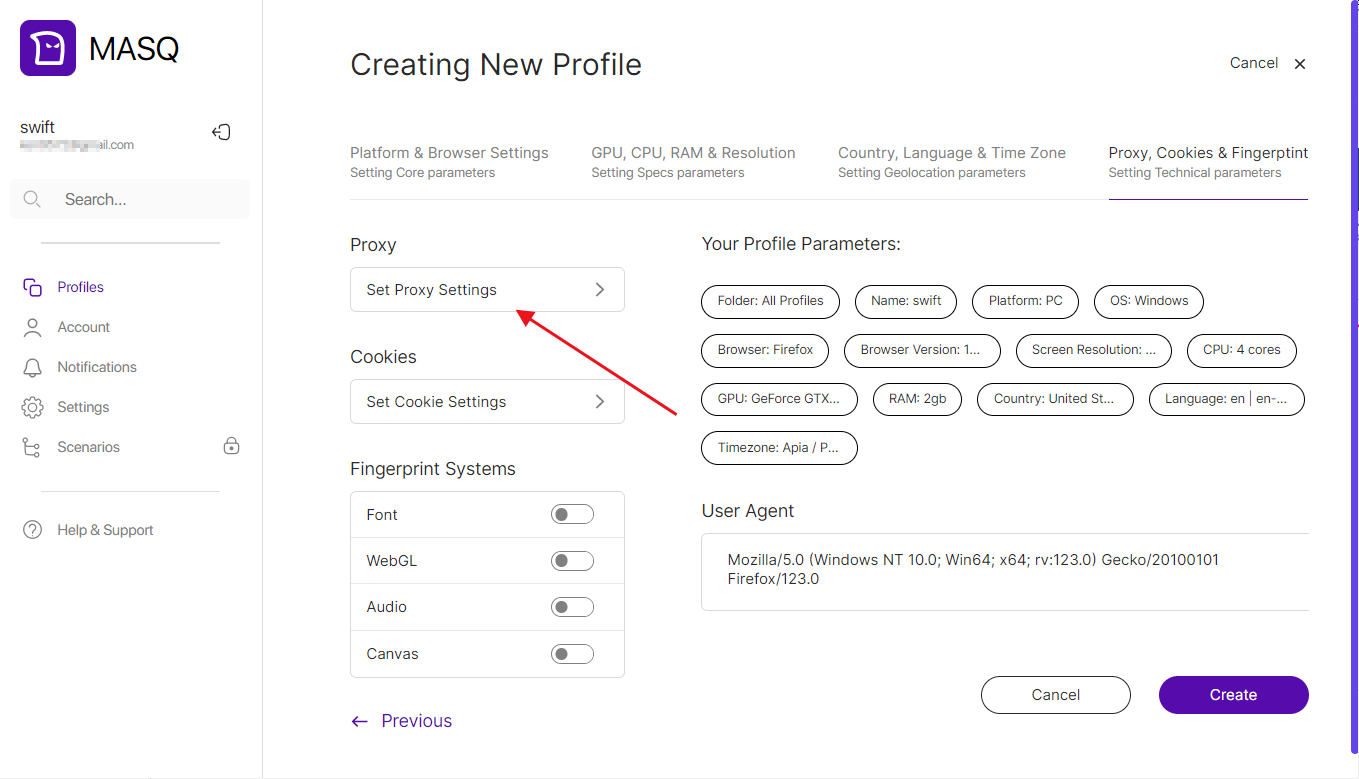
3. Click "Set Proxy Settings" to select the proxy protocol, and then paste Username, Password, Hostname, and Port you just obtained in sequence.
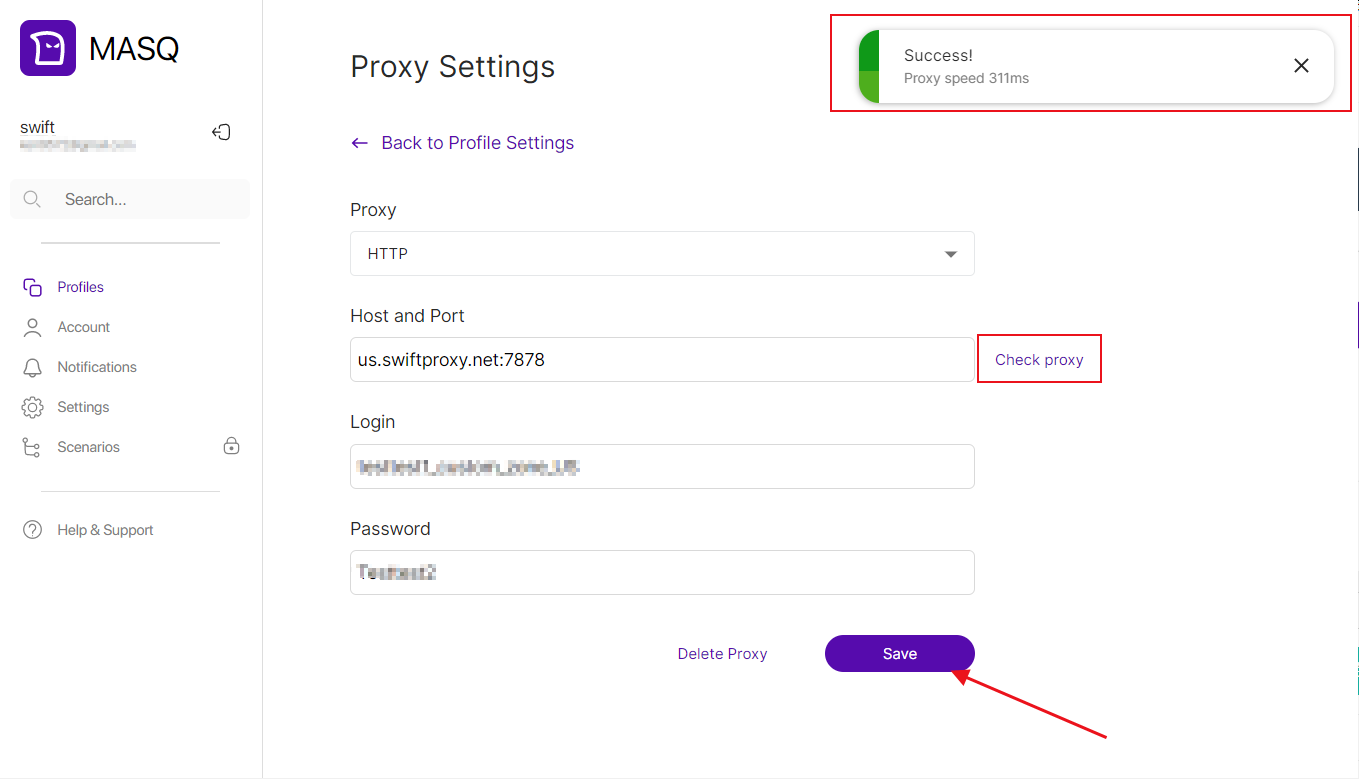
4. Click "Check proxy" to detect the proxy, and save the proxy settings after seeing the button that prompts success.
5. Finally, click the "Create" button to complete the browser creation.
 2. Set the browser name and various configuration options of the browser. You can set it according to your needs.
 3. Click "Set Proxy Settings" to select the proxy protocol, and then paste Username, Password, Hostname, and Port you just obtained in sequence.
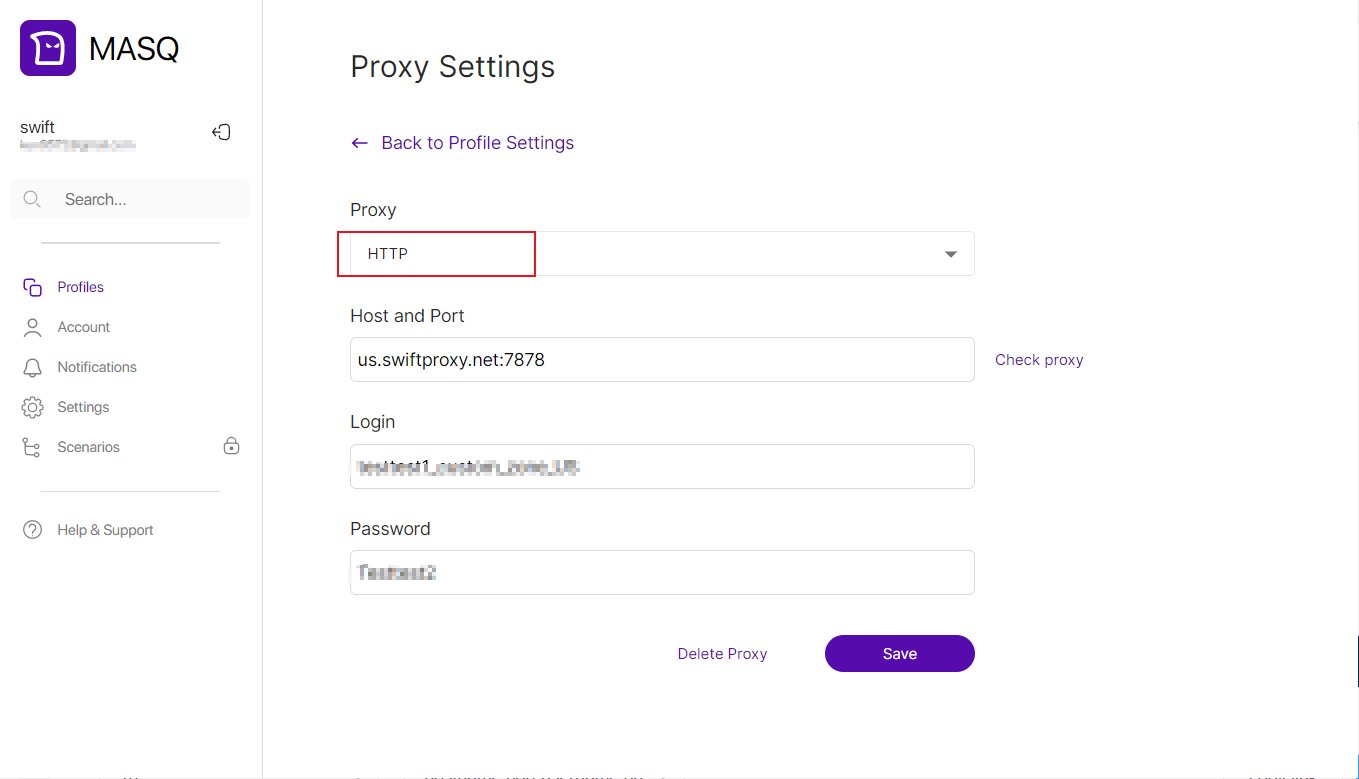 4. Click "Check proxy" to detect the proxy, and save the proxy settings after seeing the button that prompts success.
 5. Finally, click the "Create" button to complete the browser creation.