> For the complete documentation index, see [llms.txt](https://docs.swiftproxy.net/llms.txt). Markdown versions of documentation pages are available by appending `.md` to page URLs; this page is available as [Markdown](https://docs.swiftproxy.net/proxies/integration-and-usage/residential-proxies-integration/incogniton.md).
# Incogniton
## **What is Incogniton Anti-Detect Browser?**
Incognito is a powerful anti-detect browser that offers complete control over your online data privacy while effortlessly managing multiple browsing profiles.
With Incogniton, you can replace multiple computers with virtual browser profiles and be confident that your data remains safe and private. Each profile has a unique digital fingerprint associated with it, making it seem like different individuals are using the same browser!
## **How to configure Incogniton with Swiftproxy Residential Proxy?**
### ▶️ **Video Tutorial**
{% embed url="" %}
### **Step 1: Get Proxy Information and Download**
1. Download Incogniton from the [official website](https://incogniton.com/?utm_source=proxy\&utm_campaign=swiftproxy).
2. Visit the Swiftproxy website to get your proxy IPs.
* [**API Acquisition**](/proxies/residential-proxies/get-proxy/api-acquisition.md)
* [**Username and Password Authentication**](/proxies/residential-proxies/get-proxy/user-and-password-verification.md)
### **Step 2: Configure Swiftproxy in Incogniton Browser**
Now comes the core step — connecting your Swiftproxy to the Incogniton browser:
1. Open the Incogniton app and go to **Profile Management** on the sidebar.
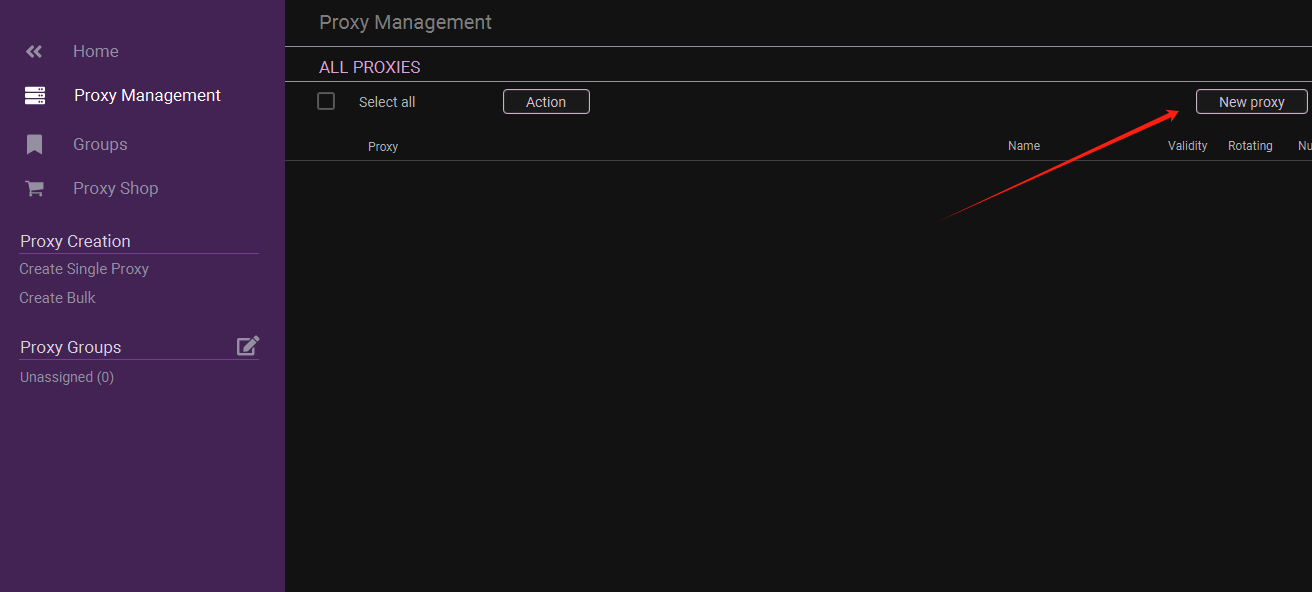
2. Tap "**Add Proxy**" at the top right.
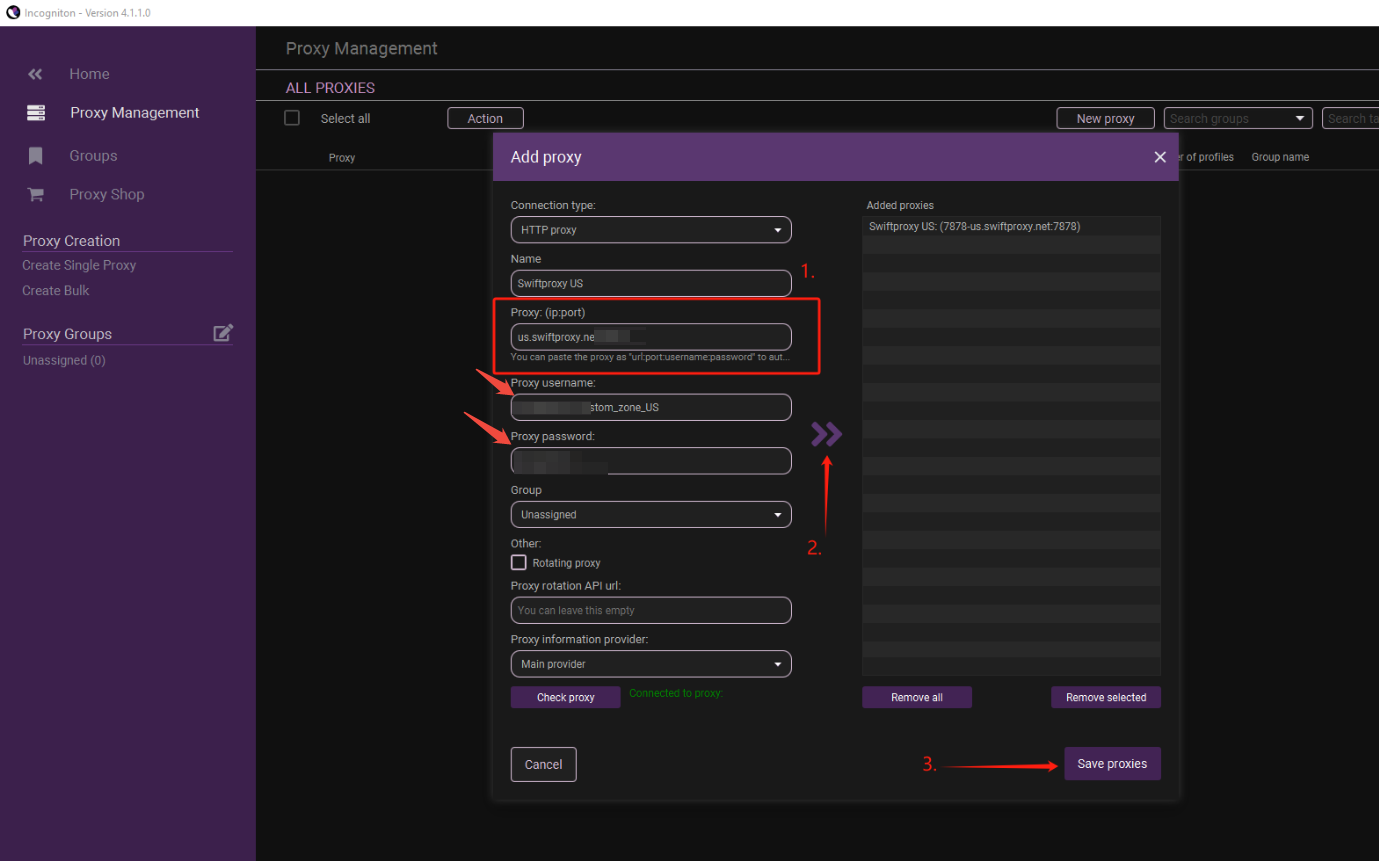
3. To configure your proxies, choose "Advanced", copy your proxy information from the Swiftproxy dashboard into column 1. Checkmark the "**Rotating Proxy**" if your proxy is in Rotating mode. Finally, click Save Proxy to proceed.\
**Note:** You can find the required proxy details in **Step 1.**
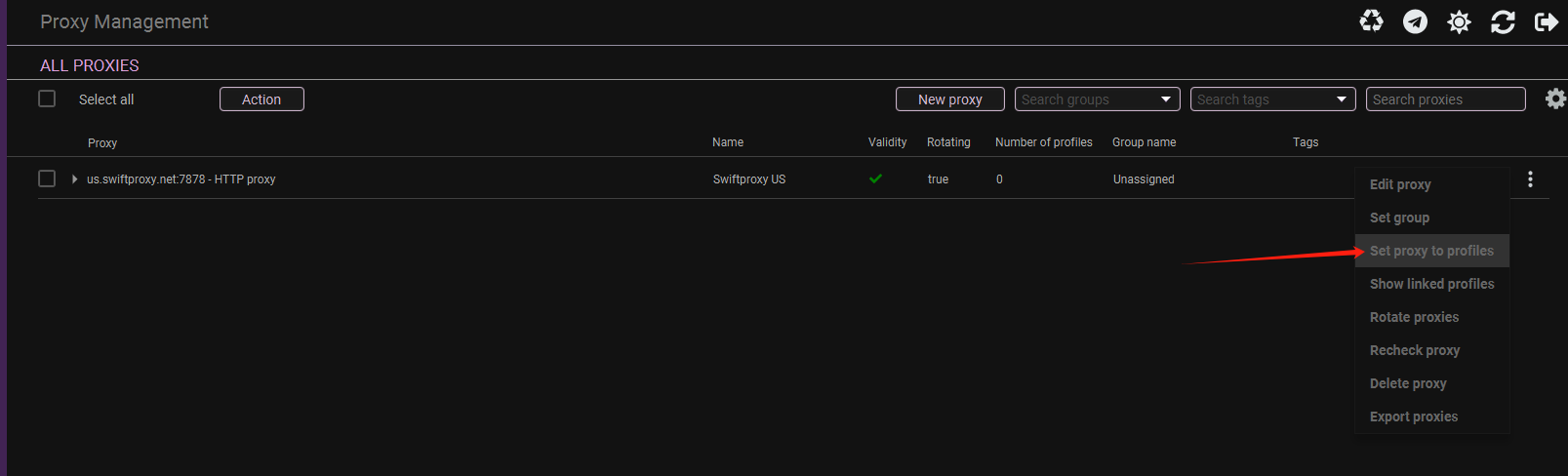
4. Once the proxy is configured, you may set it into one of your created Incogniton browser profiles.
## **Conclusion**
Congratulations! You’ve successfully integrated Swiftproxy with the Incogniton Anti-Detect Browser.
By following this step-by-step guide, you’ve unlocked a new level of control, privacy, and efficiency. Whether you're managing multiple online accounts, running ad campaigns, or conducting web testing, the combination of Incogniton and Swiftproxy ensures you do it securely and anonymously.
With Swiftproxy’s reliable residential proxies and Incogniton’s powerful profile management, your online identity stays protected, and your workflow remains seamless.
If you encounter any issues during the process, contact the Incogniton support team at **** or reach out to the Swiftproxy team for assistance.

 3. To configure your proxies, choose "Advanced", copy your proxy information from the Swiftproxy dashboard into column 1. Checkmark the "**Rotating Proxy**" if your proxy is in Rotating mode. Finally, click Save Proxy to proceed.\
**Note:** You can find the required proxy details in **Step 1.**
3. To configure your proxies, choose "Advanced", copy your proxy information from the Swiftproxy dashboard into column 1. Checkmark the "**Rotating Proxy**" if your proxy is in Rotating mode. Finally, click Save Proxy to proceed.\
**Note:** You can find the required proxy details in **Step 1.**
 ## **Conclusion**
Congratulations! You’ve successfully integrated Swiftproxy with the Incogniton Anti-Detect Browser.
By following this step-by-step guide, you’ve unlocked a new level of control, privacy, and efficiency. Whether you're managing multiple online accounts, running ad campaigns, or conducting web testing, the combination of Incogniton and Swiftproxy ensures you do it securely and anonymously.
With Swiftproxy’s reliable residential proxies and Incogniton’s powerful profile management, your online identity stays protected, and your workflow remains seamless.
If you encounter any issues during the process, contact the Incogniton support team at **
## **Conclusion**
Congratulations! You’ve successfully integrated Swiftproxy with the Incogniton Anti-Detect Browser.
By following this step-by-step guide, you’ve unlocked a new level of control, privacy, and efficiency. Whether you're managing multiple online accounts, running ad campaigns, or conducting web testing, the combination of Incogniton and Swiftproxy ensures you do it securely and anonymously.
With Swiftproxy’s reliable residential proxies and Incogniton’s powerful profile management, your online identity stays protected, and your workflow remains seamless.
If you encounter any issues during the process, contact the Incogniton support team at **