> For the complete documentation index, see [llms.txt](https://docs.swiftproxy.net/llms.txt). Markdown versions of documentation pages are available by appending `.md` to page URLs; this page is available as [Markdown](https://docs.swiftproxy.net/proxies/integration-and-usage/residential-proxies-integration/dicloak.md).
# DICloak
DICloak is a tool focused on improving social media privacy and security.This tutorial will teach you how to configure Swiftproxy Residential Proxy in DICloak.
## What is DICloak?
DICloak is a tool focused on improving social media privacy and security. By modifying various parameters such as your browser's timezone, language, screen resolution, and user agent (UA), it makes the online environment of each of your accounts appear to be logged in by real users from different locations and devices, effectively preventing account association and bans due to identical fingerprints.
## How to configure DICloak with Swiftproxy Residential Proxy?
### Step 1: Get Proxy Information and Download
1. Download DICloak Browser from the [official website](https://dicloak.com/download?rc=537qFIm3).
2. Visit the Swiftproxy website to get your proxy IPs.
* [API Acquisition](https://docs.swiftproxy.net/proxies/residential-proxies/get-proxy/api-acquisition)
* [Username and Password Authentication](https://docs.swiftproxy.net/proxies/residential-proxies/get-proxy/user-and-password-verification)
### Step 2: Configure Swiftproxy in DICloak Browser
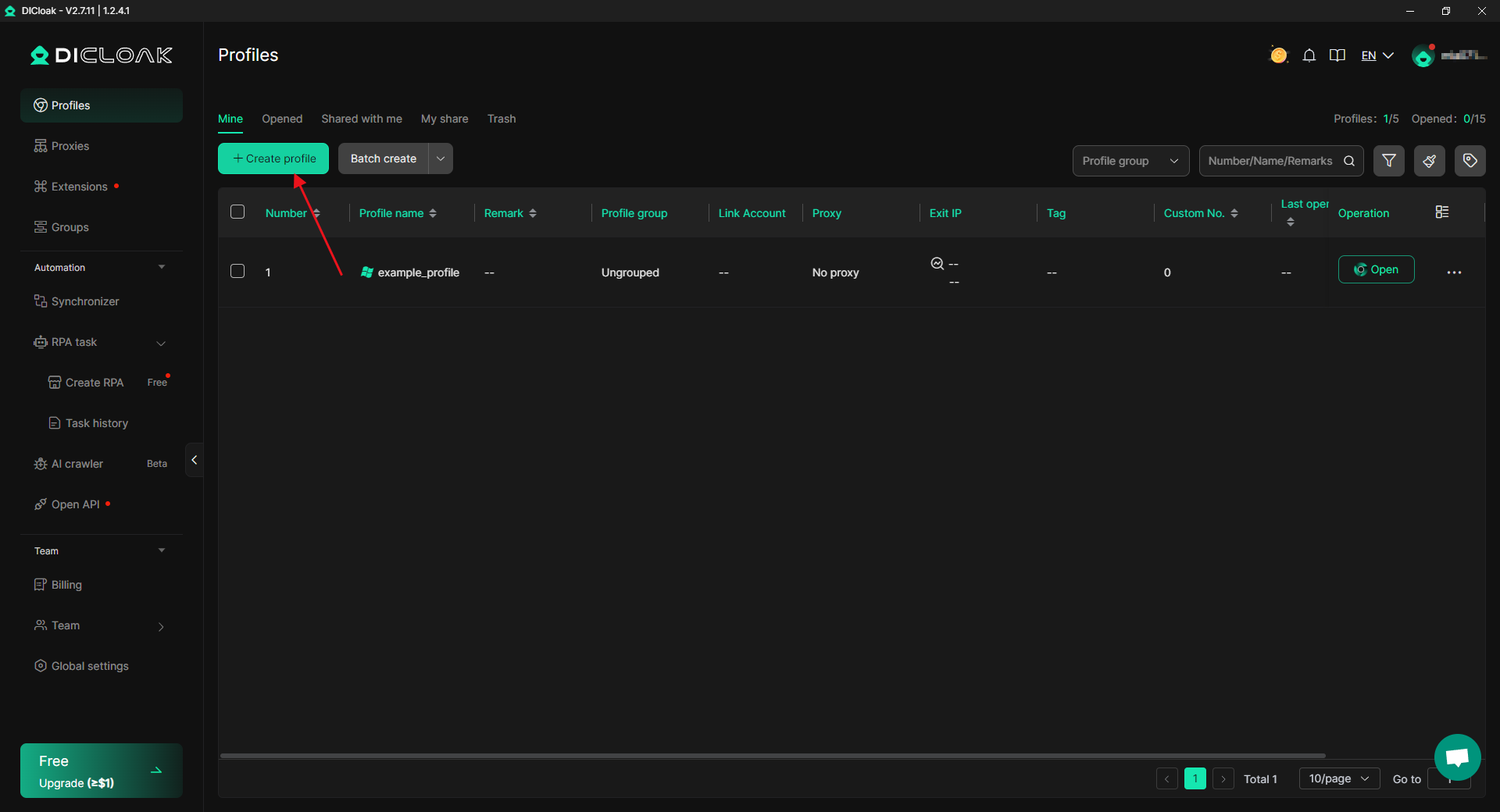
1\. Double-click to open the DICloak client, and click 【Create profile】 to start creating a browser.
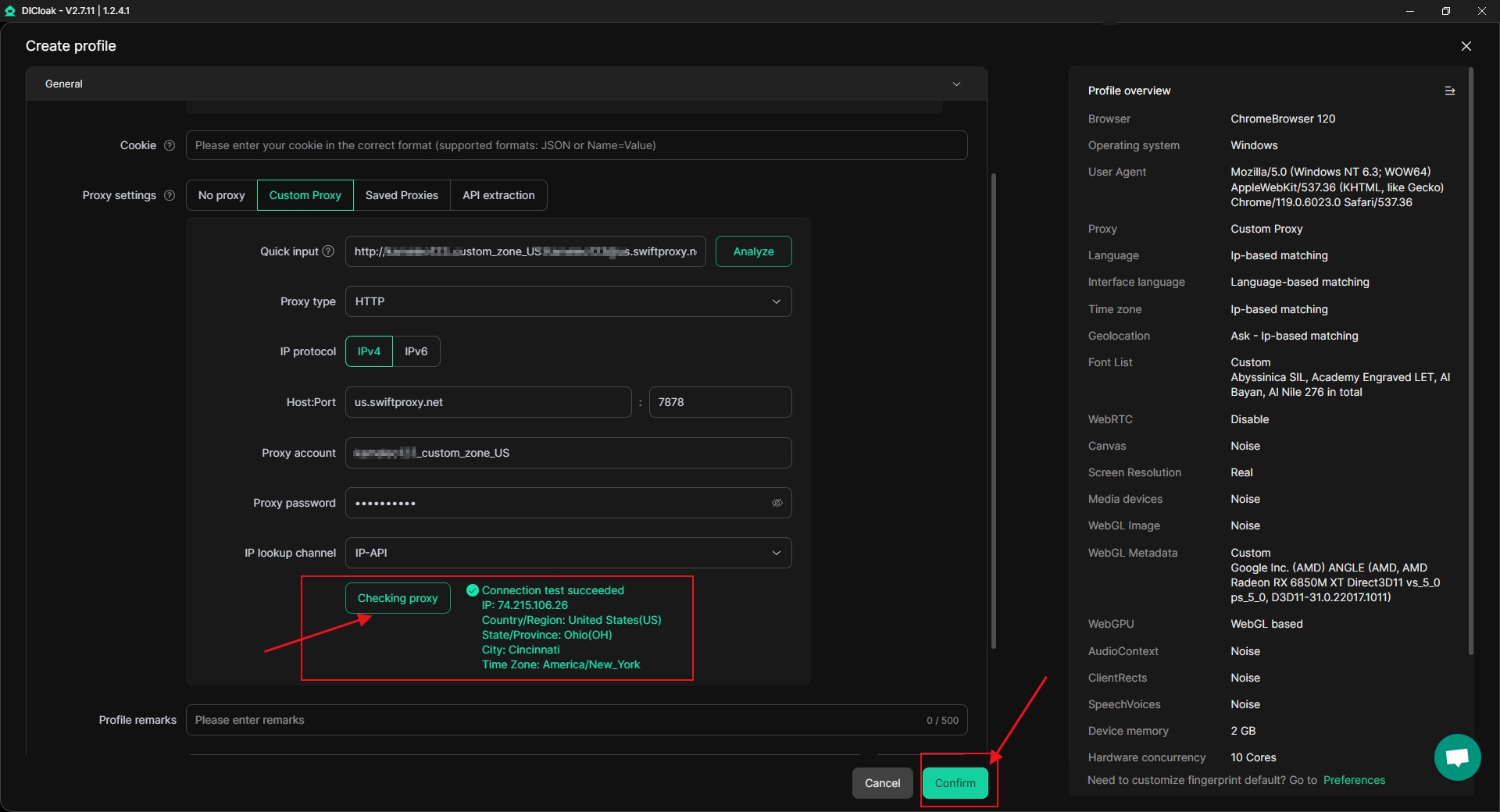
2\. After entering a name, proceed to the proxy settings. In the proxy section, select "Custom Proxy." Next, enter the information according to the example format. Set the proxy protocol according to your needs; here, we'll use HTTP for demonstration. After pasting, click "Analyze" to automatically fill in the proxy information.
3\. Click on "Checking proxy" to check if the proxy connection is working properly. If the connection is successful, you can see the proxy information.
4\. Next, configure the other browser options according to your needs, and finally click "Confirm" to complete browser creation.
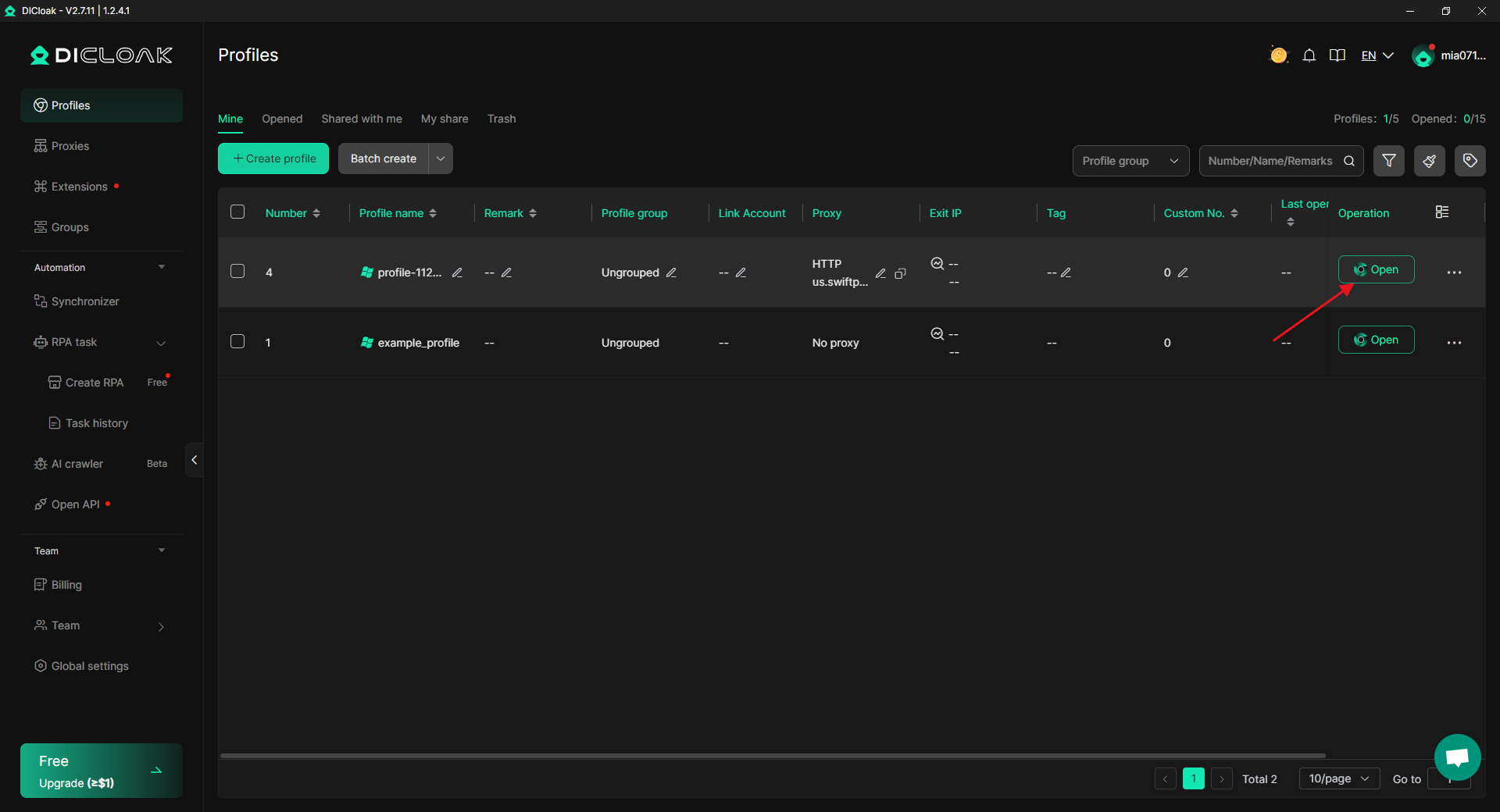
5\. Click “Open” to begin using the browser.